

Getting started with Zairyuu
This page explains how to start using Zairyuu.
- You only need a smartphone
- About 15 minutes in total
Part 1: Install Claude and create an account
PART 1
What you need
- A smartphone
- The email address you gave to Headliner (you must be able to read that mailbox)
STEP 1
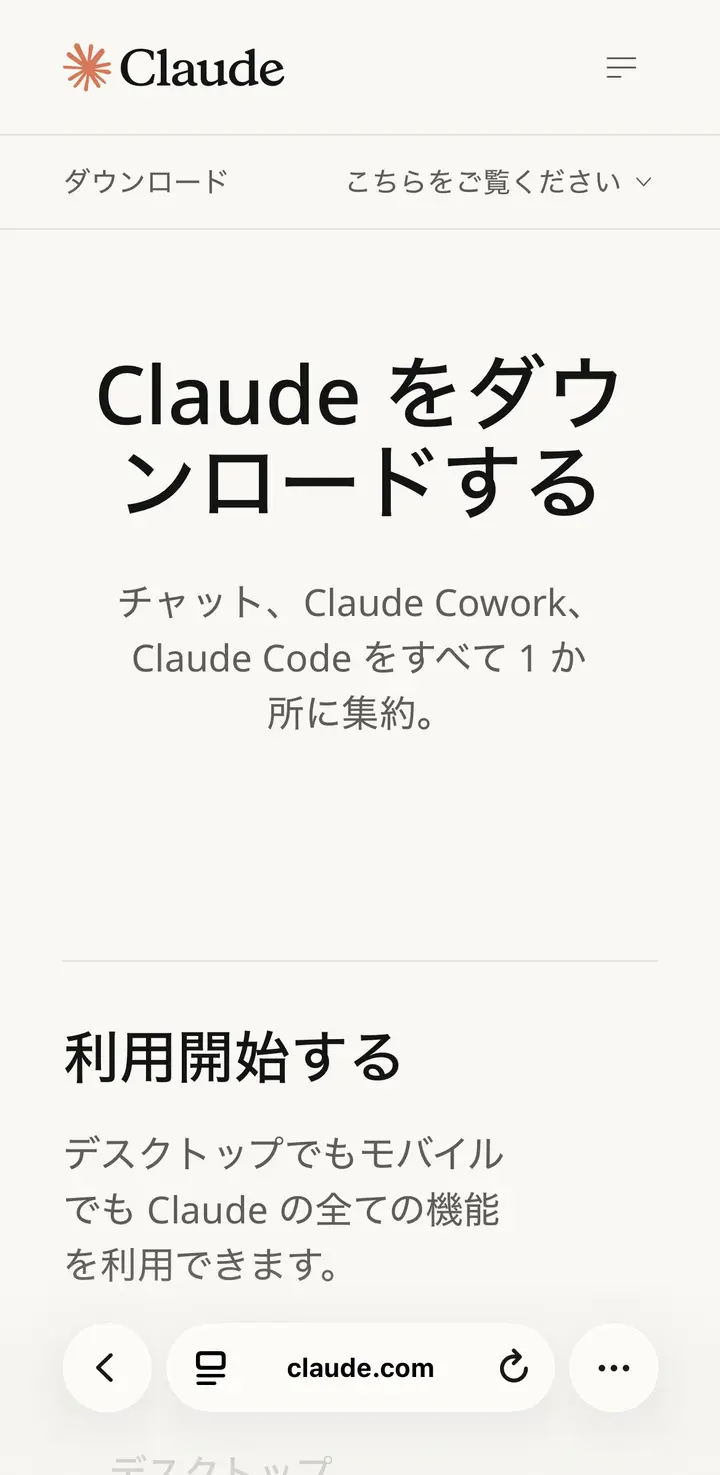
Open the download page
On your phone, open claude.com/ja/download in a browser (Safari / Chrome).
STEP 2
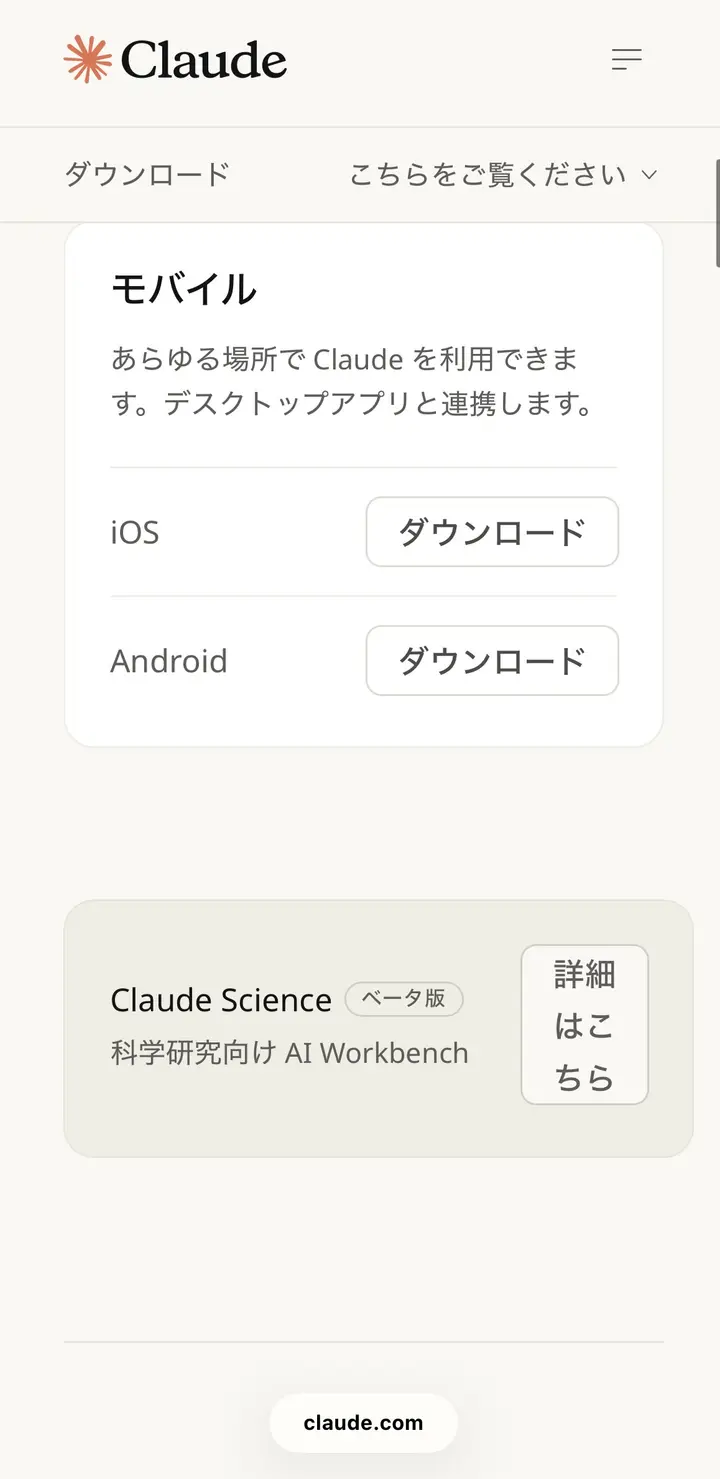
Tap the mobile download
Scroll down and you will find「モバイル」(Mobile). If you use an iPhone, tap iOS. If you use Android, tap Android, then「ダウンロード」(Download).
STEP 3
Get the app
The App Store (or Google Play on Android) opens. Tap「入手」(Get) and install the app.
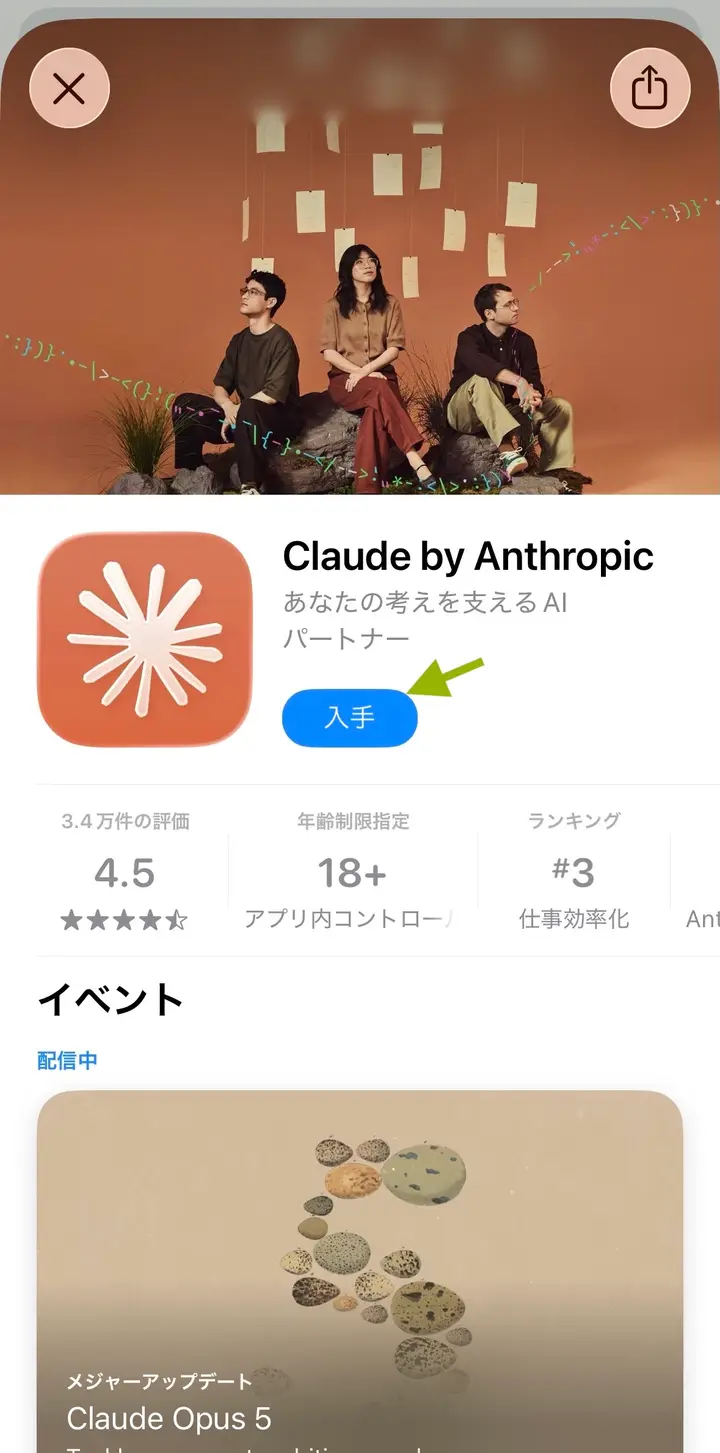
When the installation is finished, open the Claude app.
STEP 4
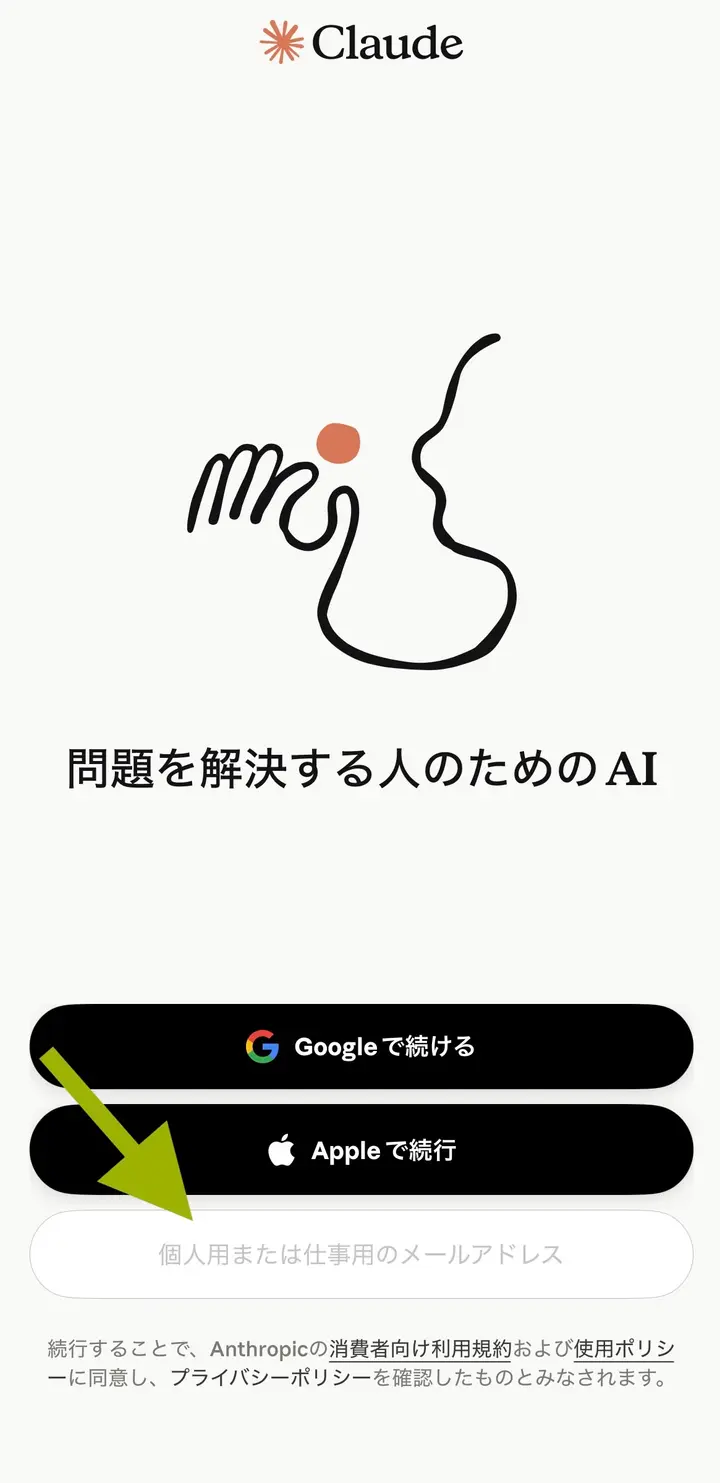
Enter your email address
In the field at the bottom,「個人用または仕事用のメールアドレス」(Personal or work email address), enter the email address you gave to Headliner.
STEP 5
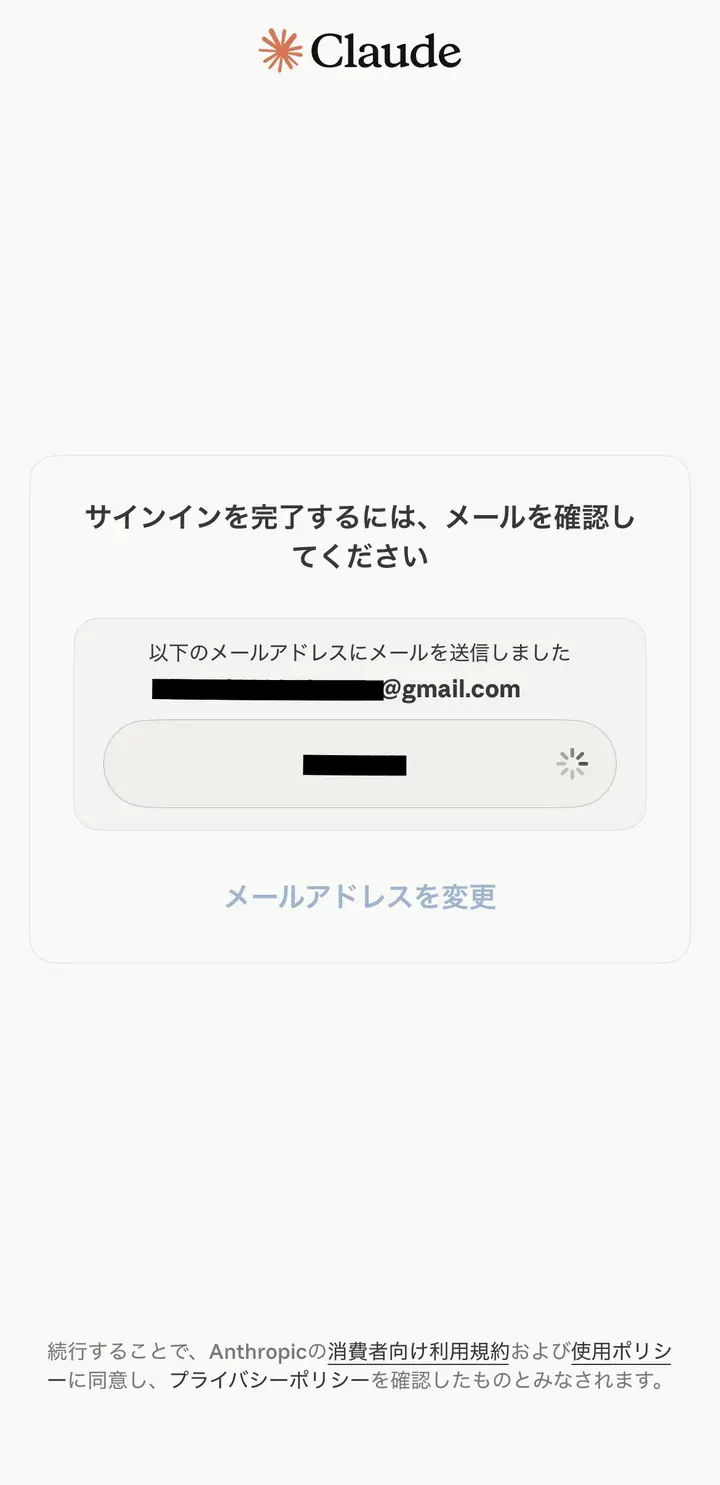
A screen asking you to check your email appears
This screen appears. Do not close this screen.
STEP 6
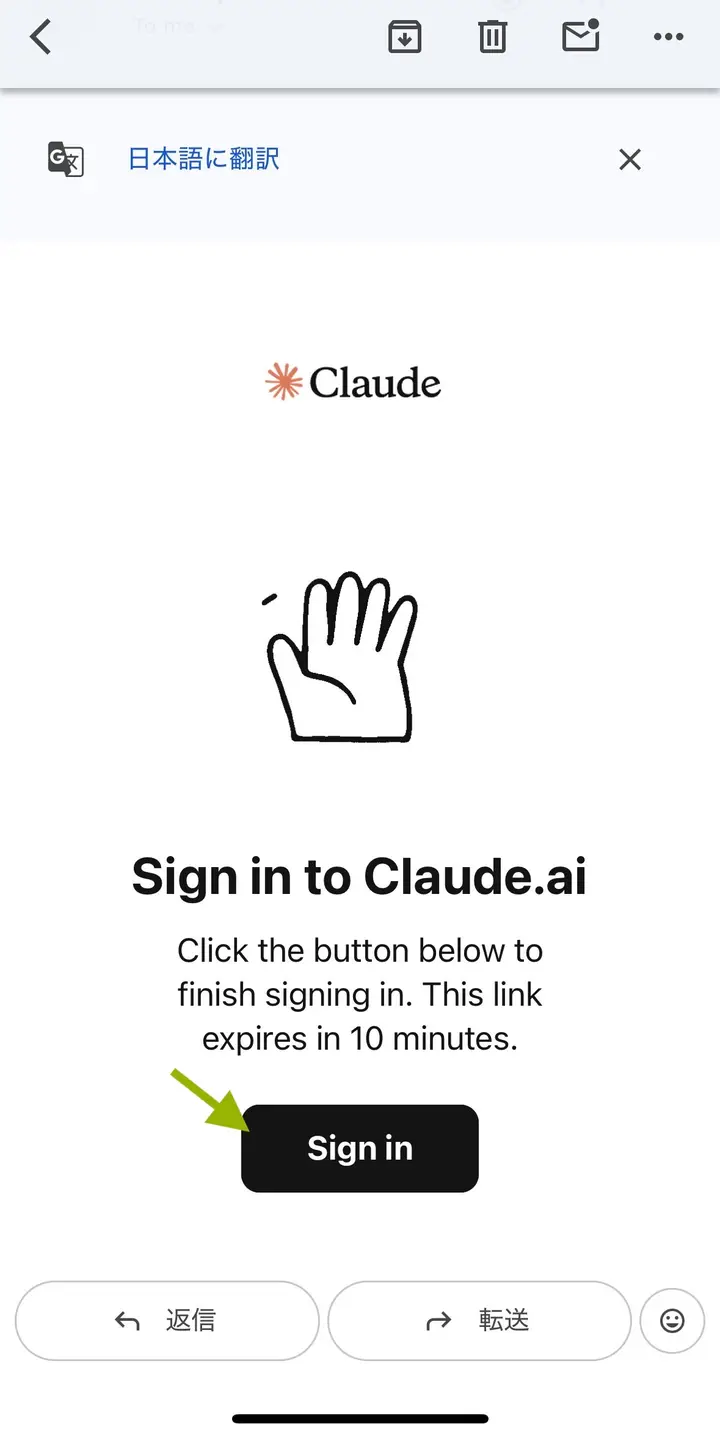
Open the email
Open your mail app. There is an email from Claude. Tap "Sign in".
STEP 7
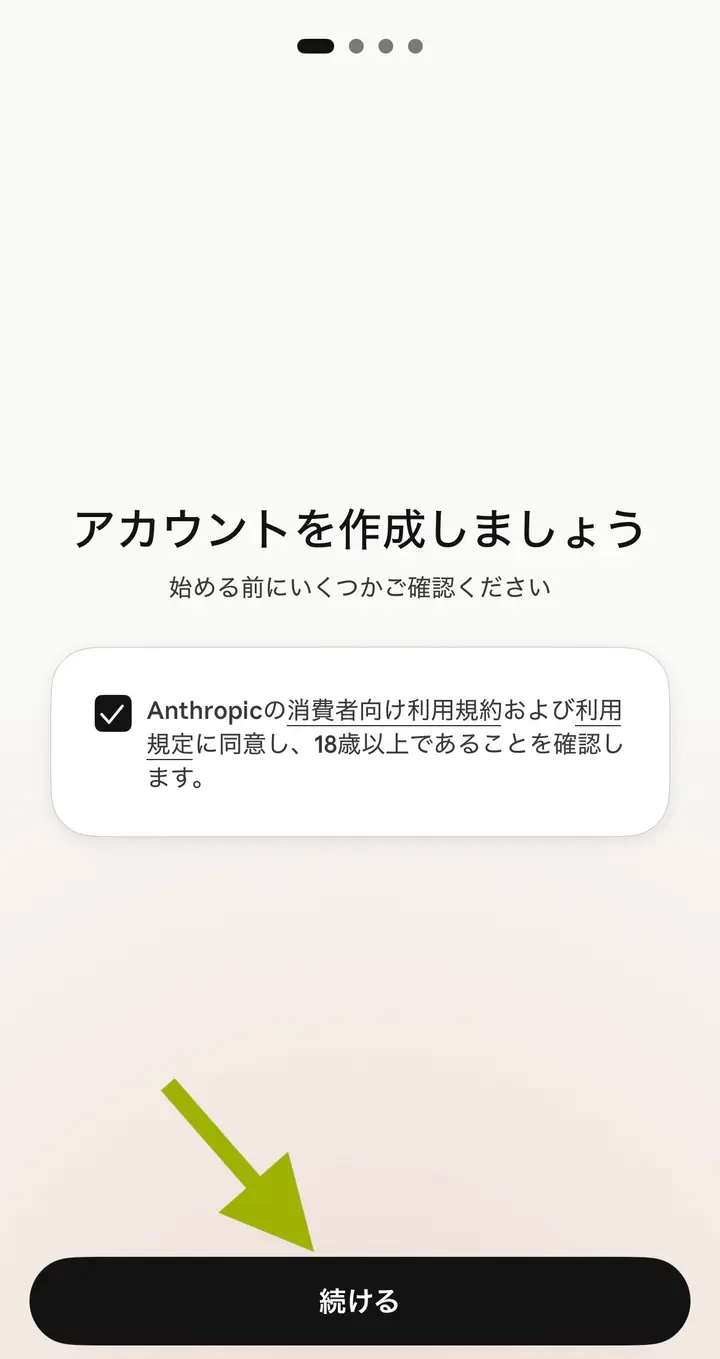
Create your account
Go back to the Claude app. Tick the checkbox and tap「続ける」(Continue).
STEP 8
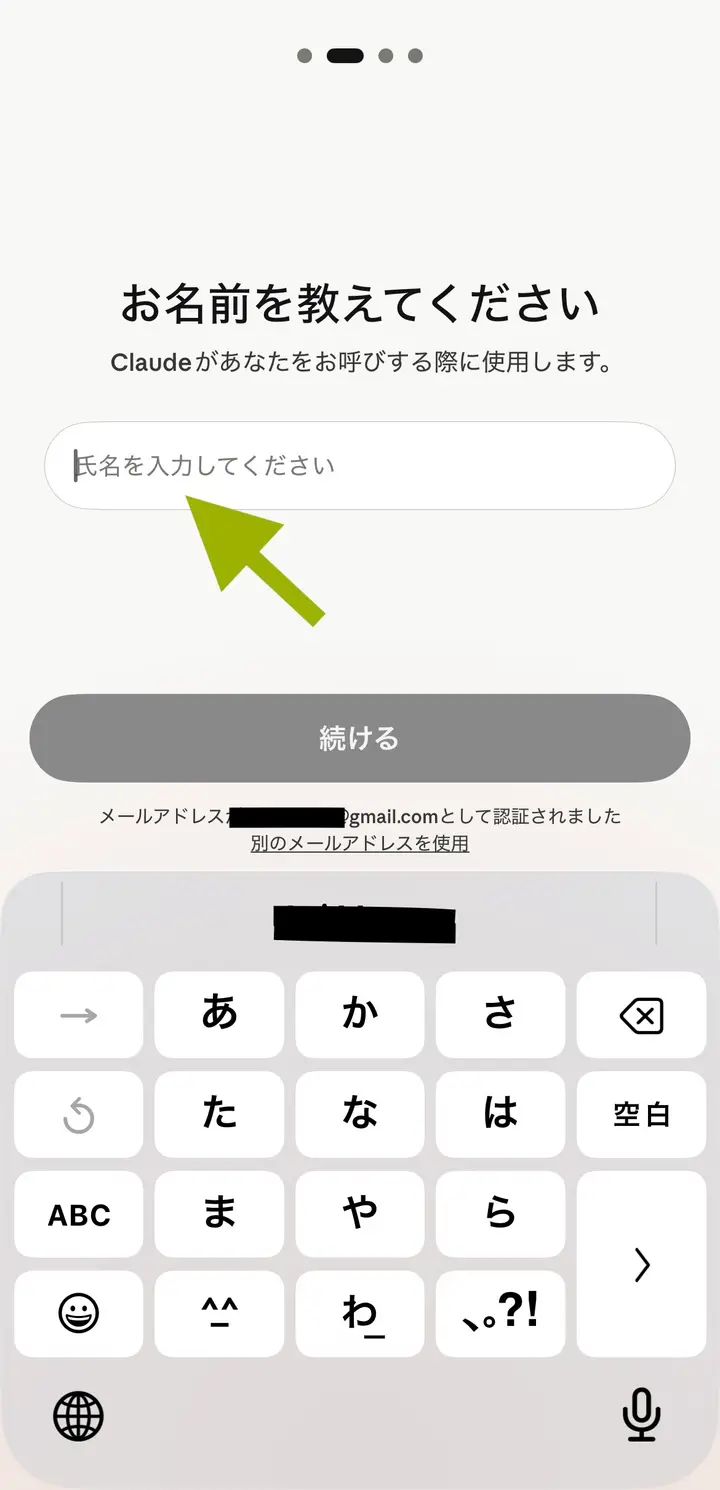
Enter your name
Enter your name and tap「続ける」(Continue).
STEP 9
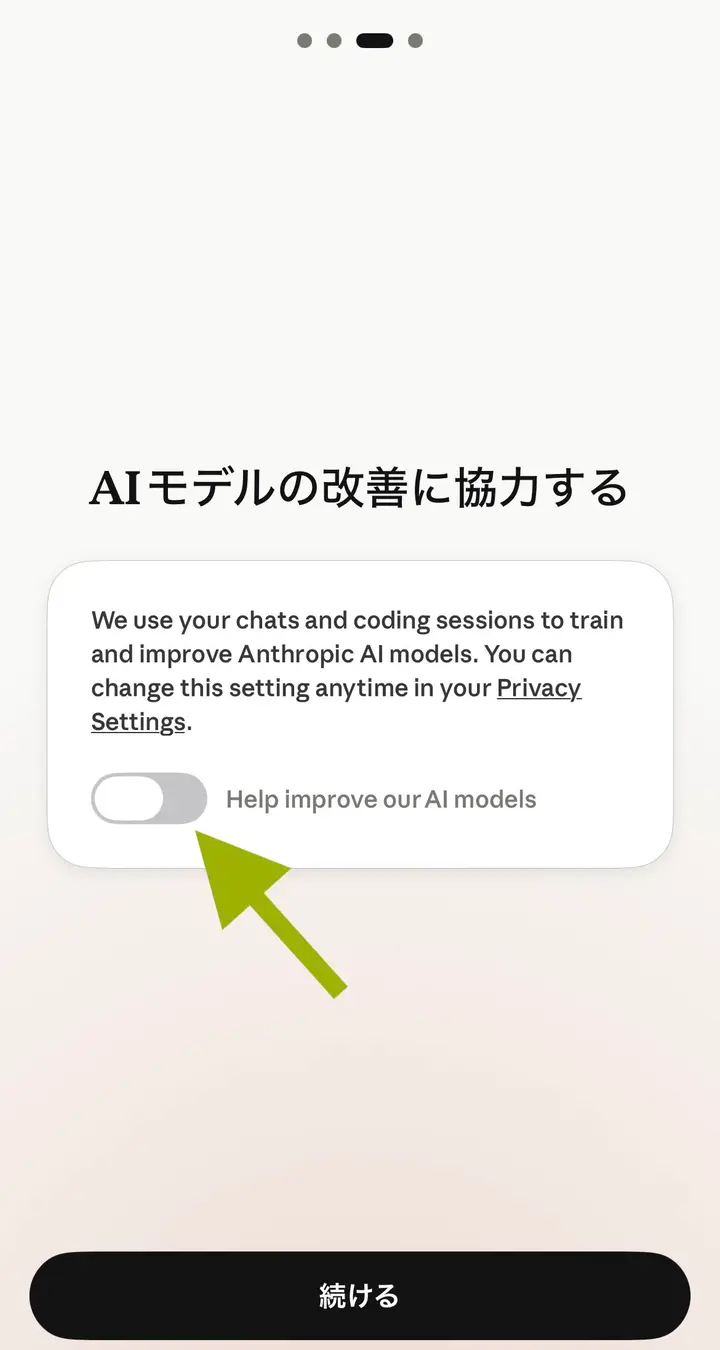
Turn off AI model improvement
You must turn off the "Help improve our AI models" switch. If the switch is on the right, tap it to move it to the left. Then tap「続ける」(Continue).
STEP 10
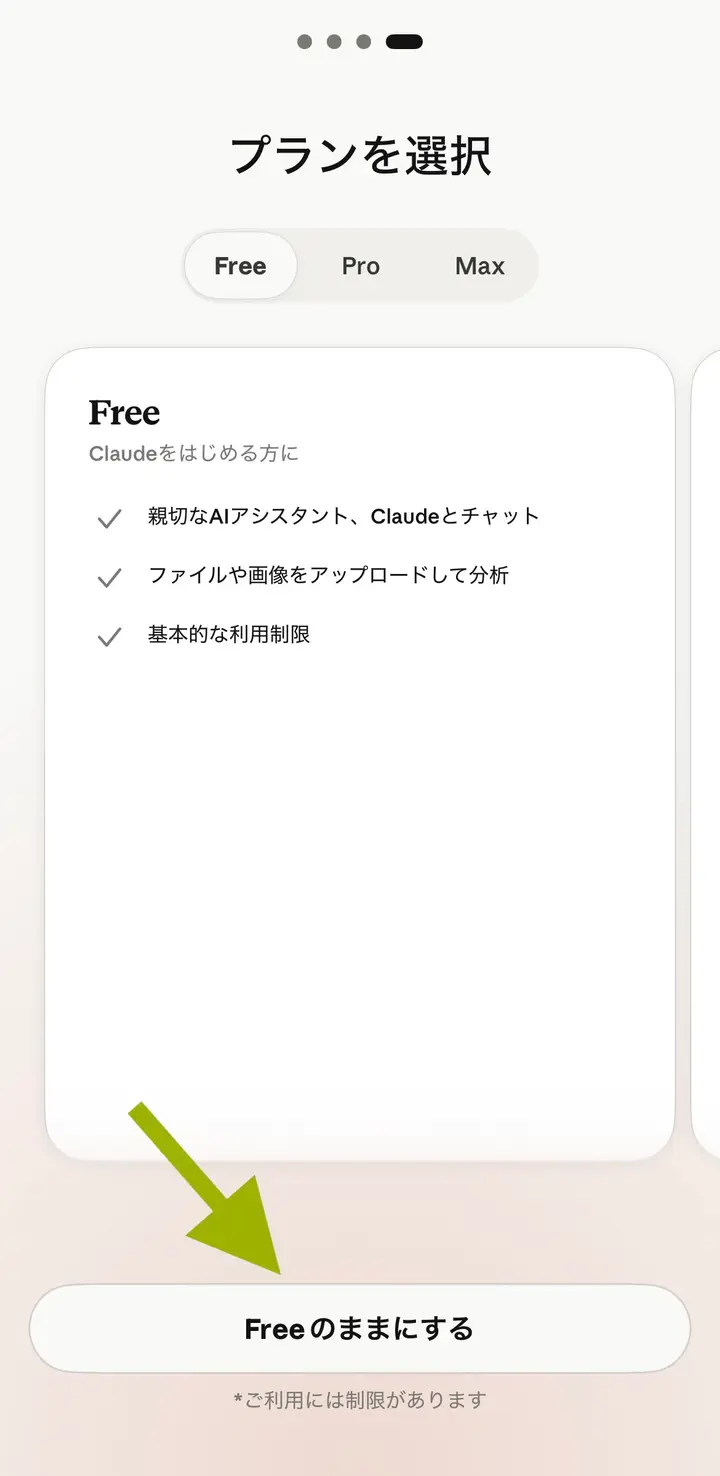
Choose a plan
Under "Free", tap「Freeのままにする」(Stay on Free). It costs nothing.
STEP 11
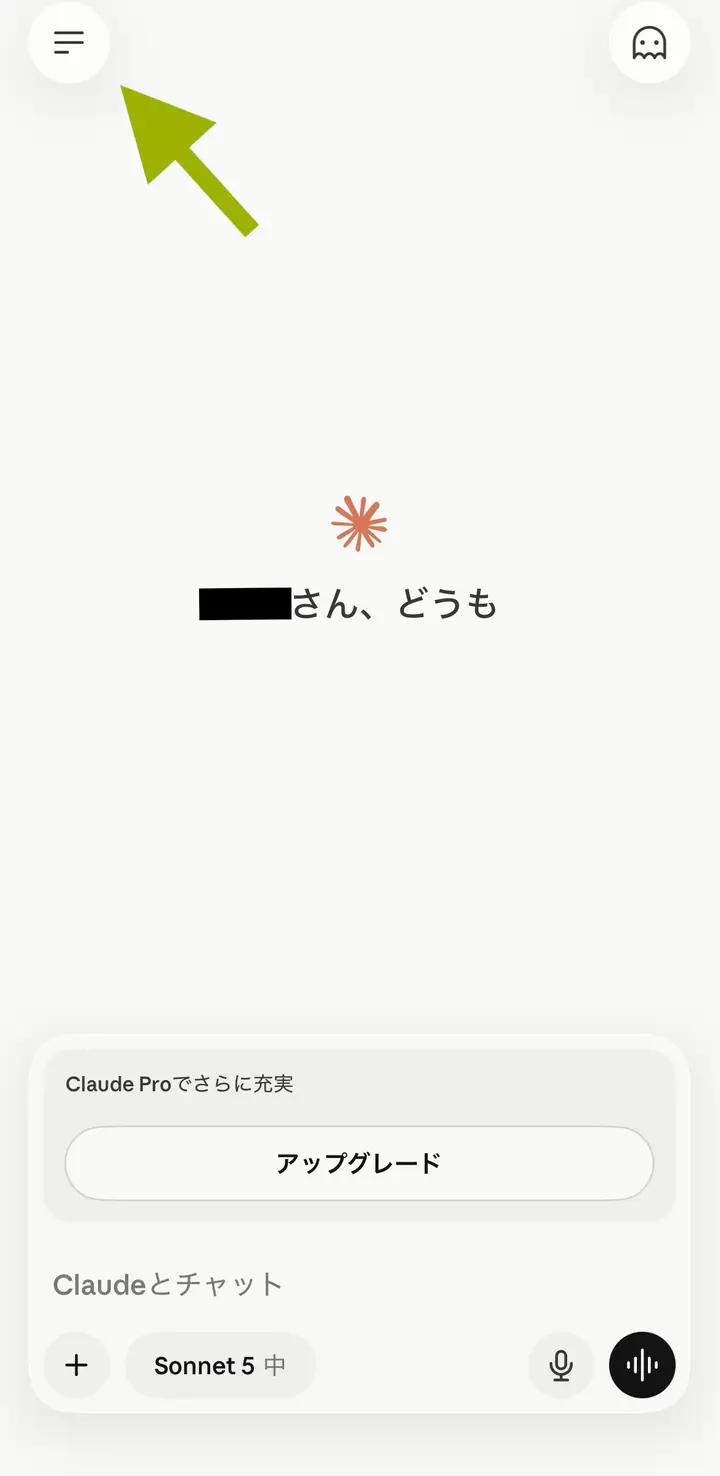
Part 1 is complete
If your name appears, you have succeeded.
Next, go on to Part 2.
Part 2: Set up Zairyuu
PART 2
What you need
Open the email you received from Headliner. Note: the email may have gone to your spam folder. Please check there too. It contains two important things.
| Name | Where you use it |
|---|---|
| Connector URL | Part 2, step 6 |
| Authentication code (12 characters) | Part 2, step 9 |
STEP 1
Tap the button at the top left
Open the Claude app. Tap the three lines button at the top left.
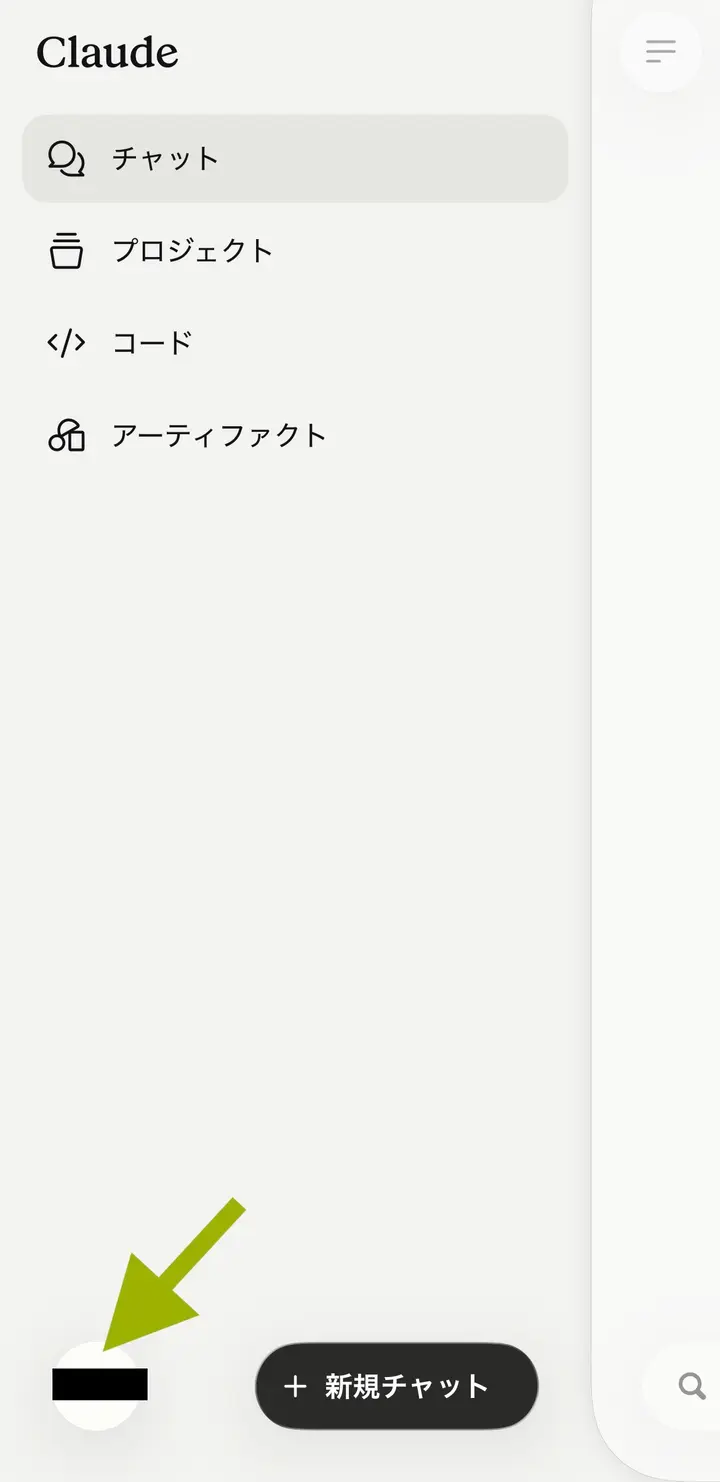
STEP 2
Tap your own name
A menu appears. Tap your own name at the very bottom.
STEP 3
Tap 「設定」 (Settings), then 「コネクタ」 (Connectors)
The「設定」(Settings) screen opens. Scroll down.
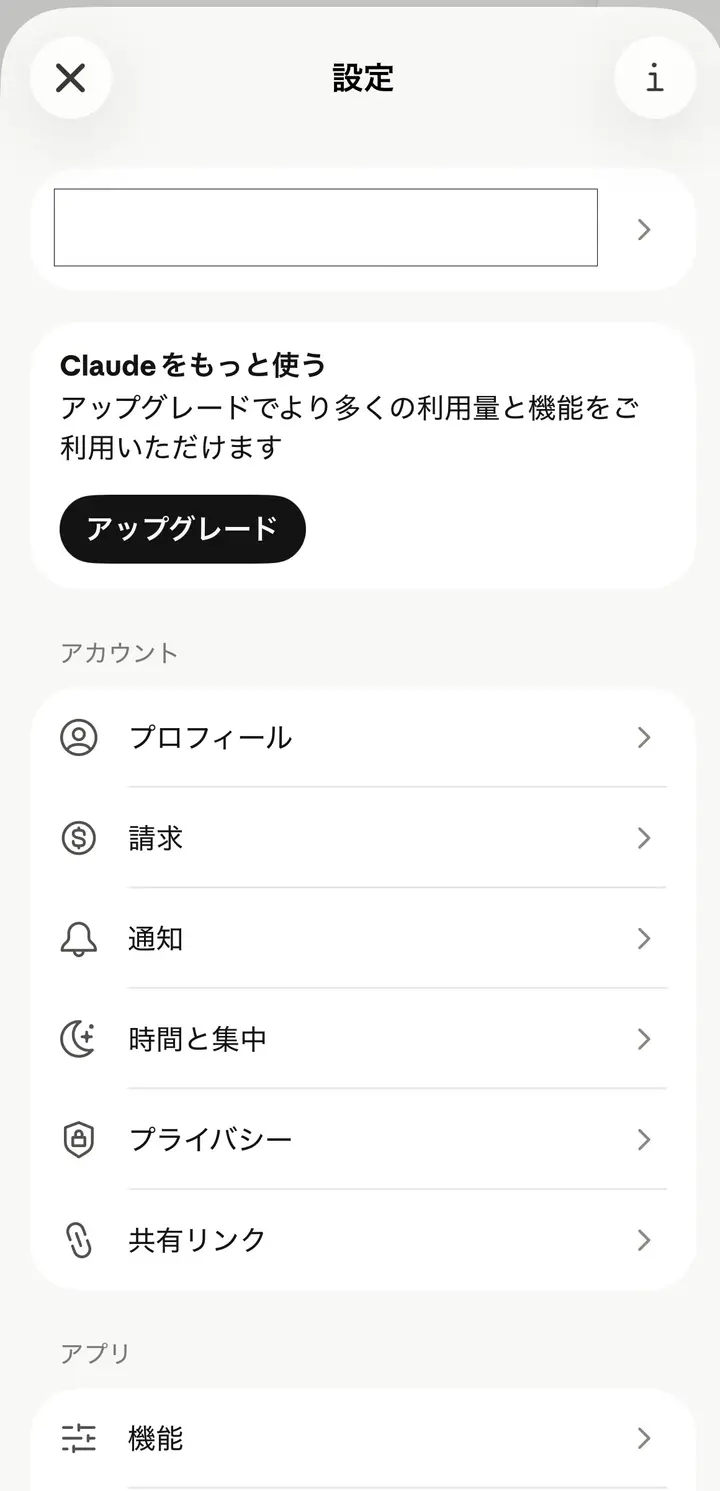
Under「アプリ」(Apps), tap「コネクタ」(Connectors).
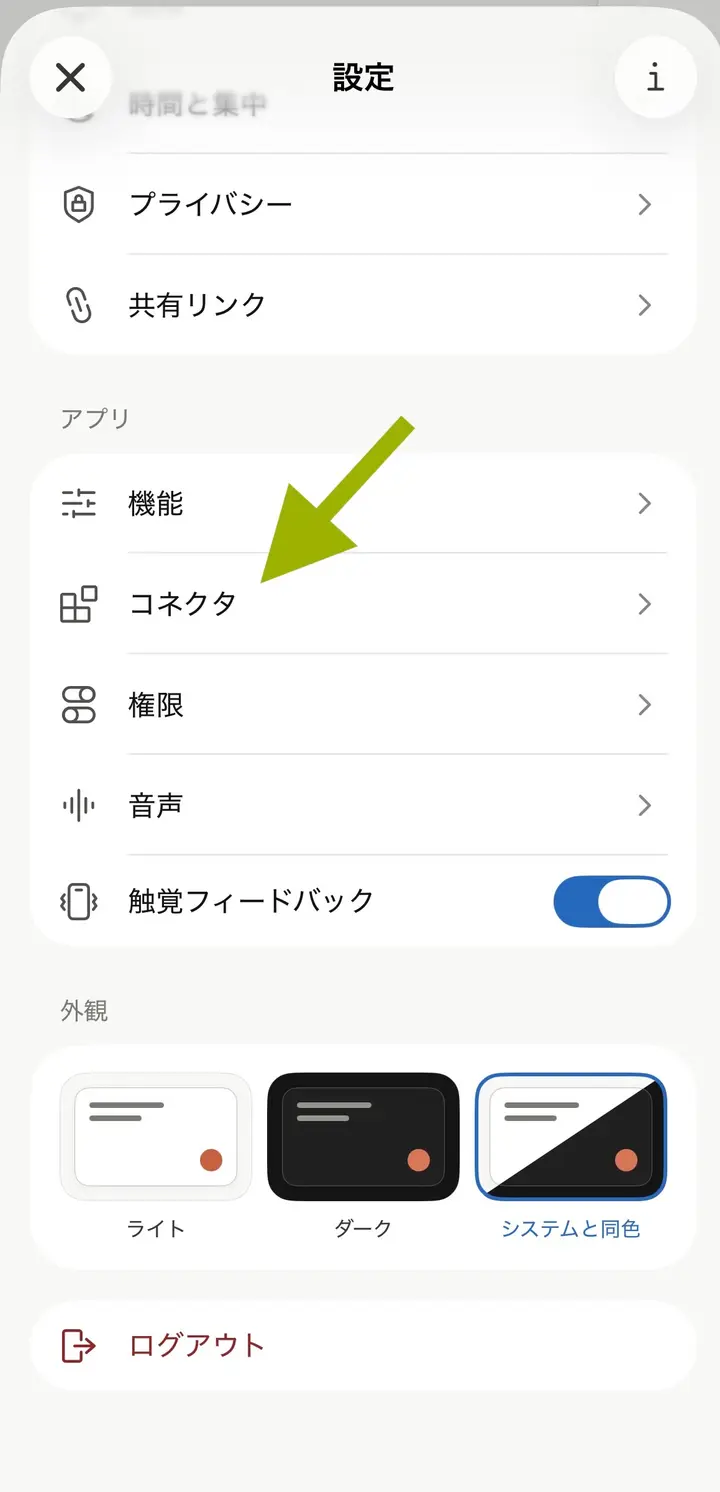
STEP 4
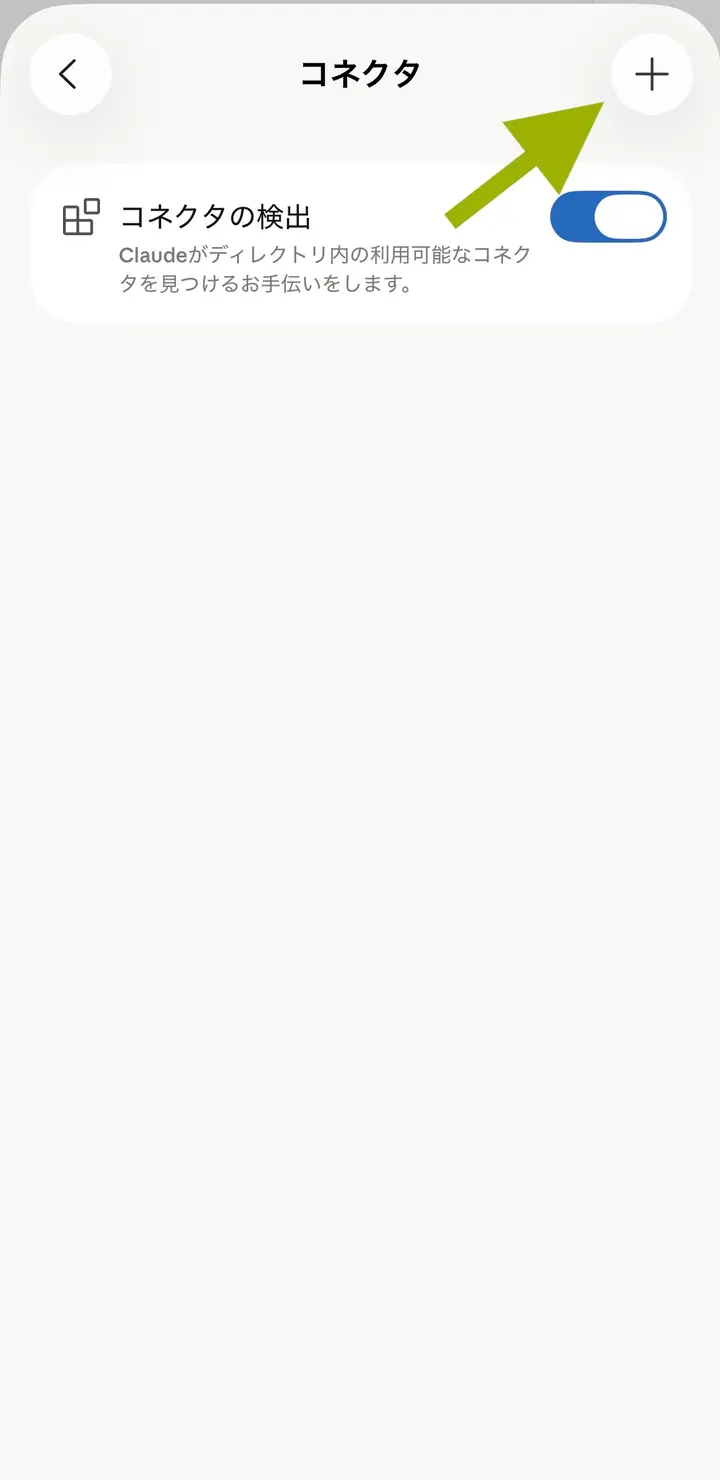
Tap the + at the top right
Check that「コネクタの検出」(Connector discovery) is on (switch to the right, blue). Then tap the + at the top right.
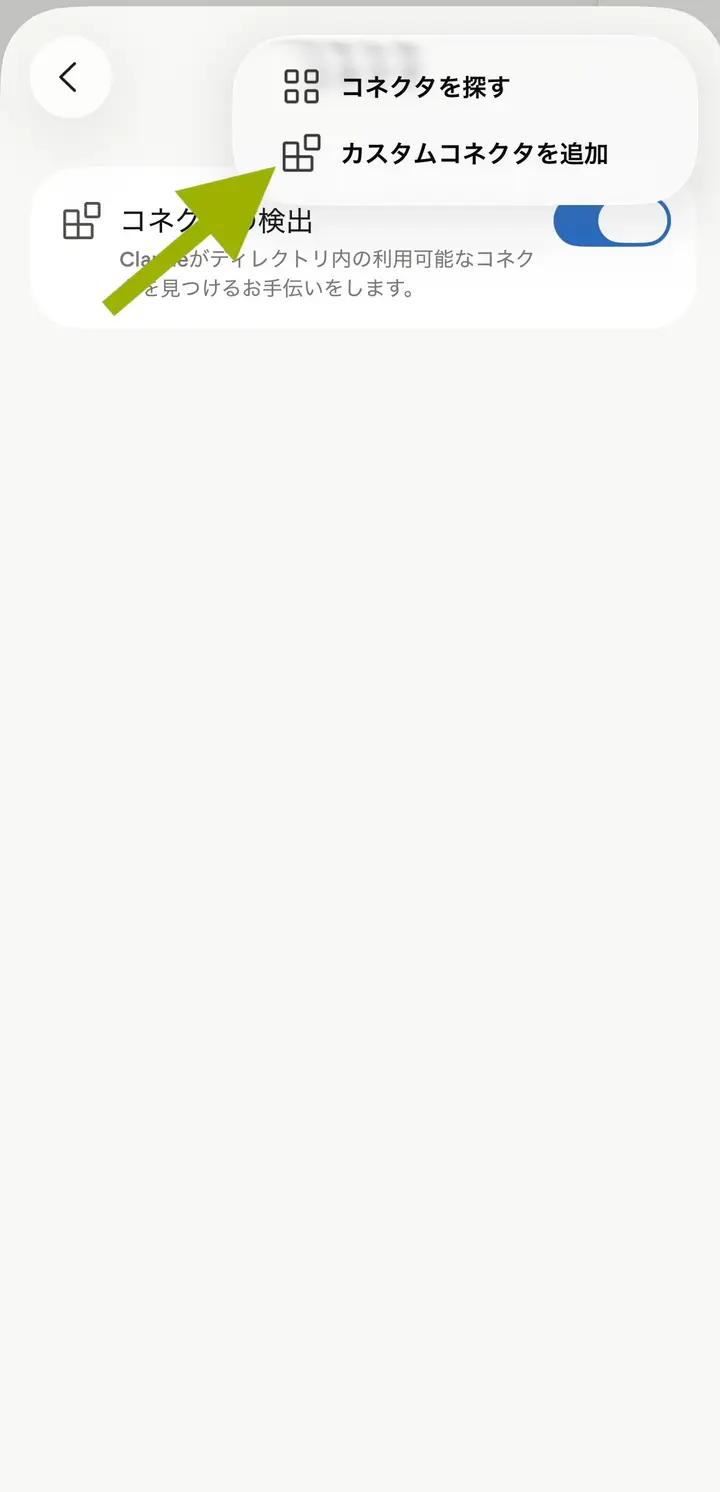
STEP 5
Tap 「カスタムコネクタを追加」 (Add custom connector)
STEP 6
Enter the name and the URL
- Name … write Zairyuu
- URL … copy the connector URL from the email and paste it here
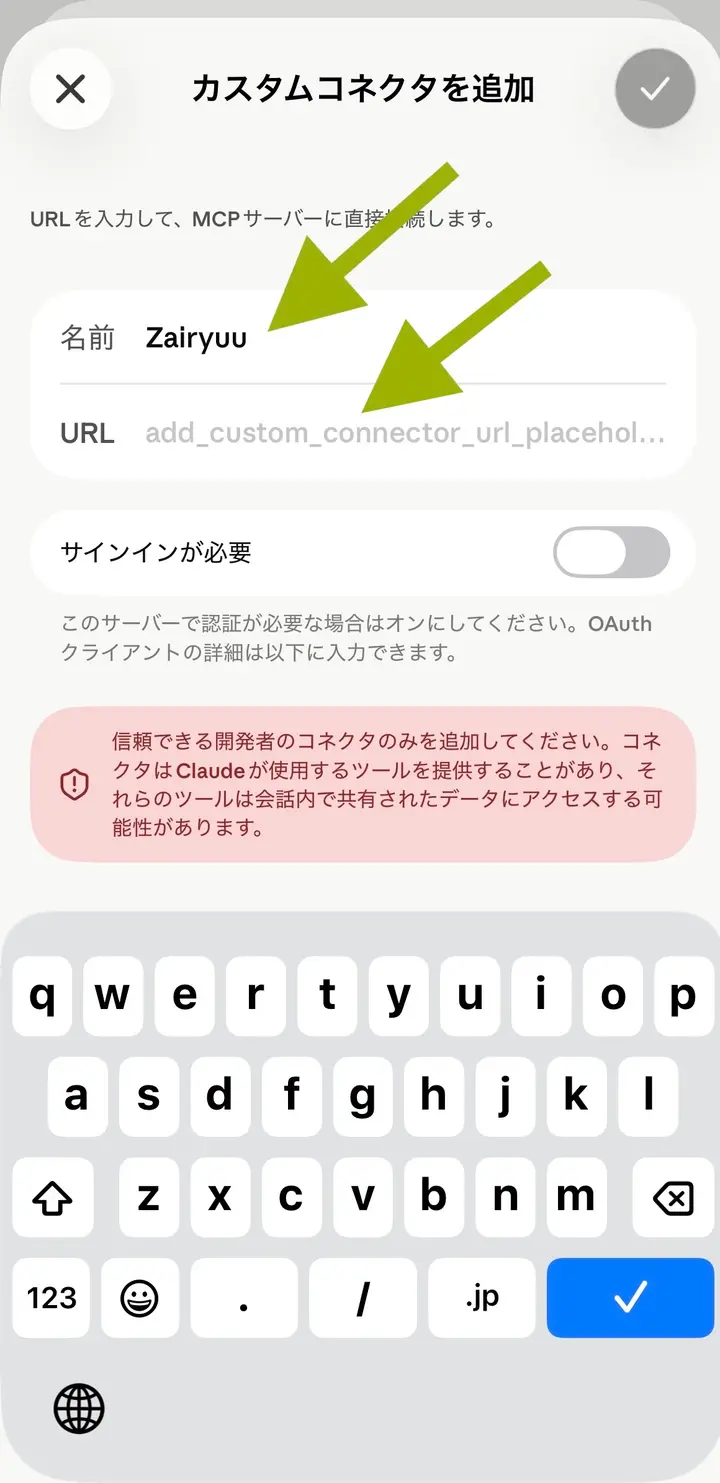
Finally, tap the ✓ (check mark) at the top right.
STEP 7
Tap 「連携」 (Connect)
Zairyuu now appears on the connector screen.
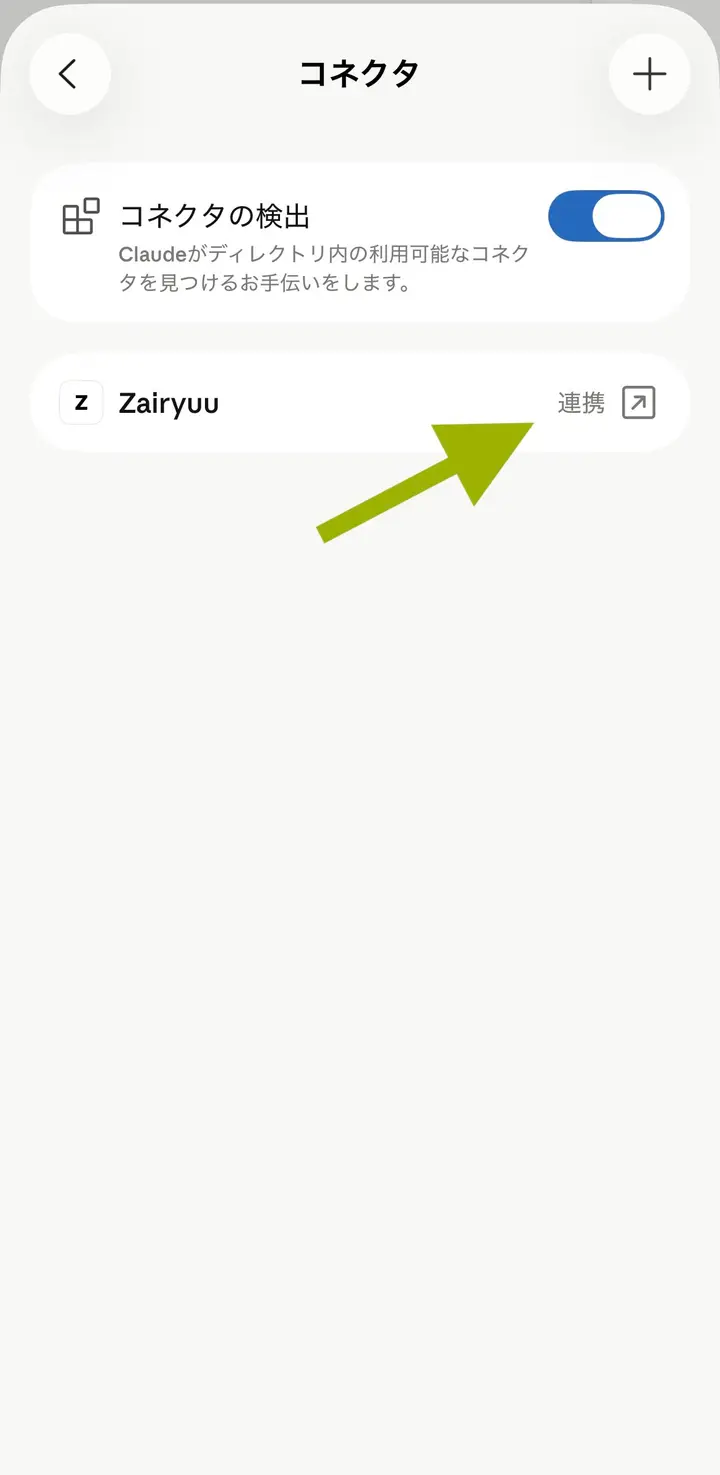
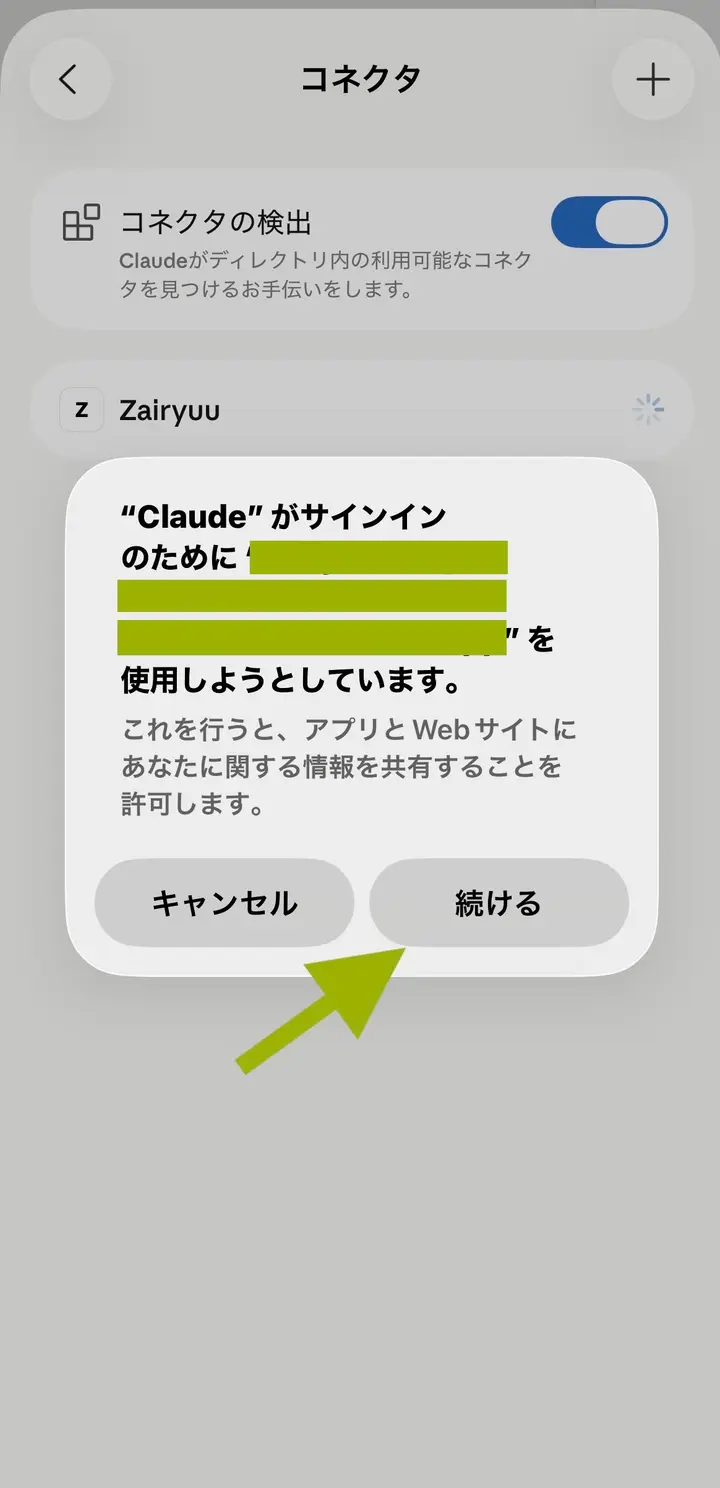
STEP 8
Tap 「続ける」 (Continue)
A message appears saying「"Claude" が サインインのために … を 使用しようとしています。」("Claude" wants to use … to sign in). Tap「続ける」(Continue).
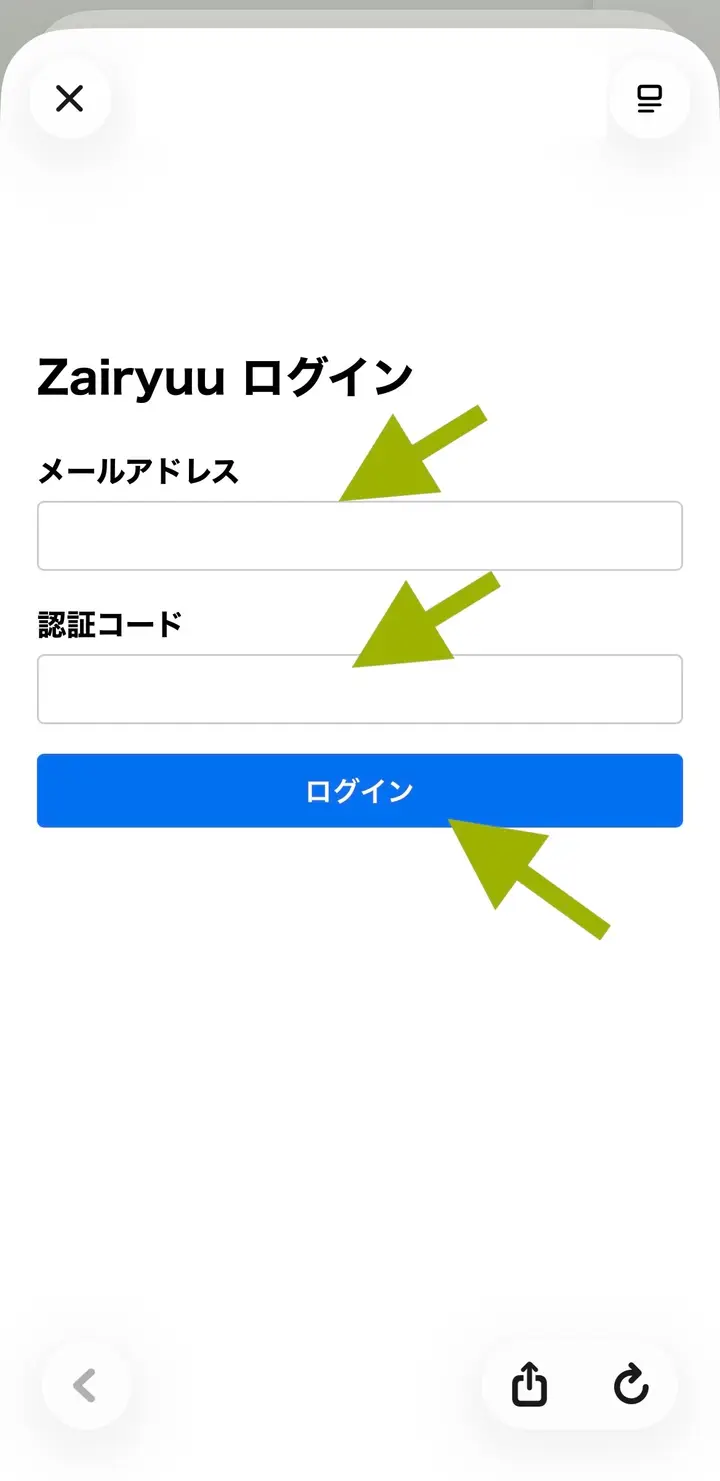
STEP 9
Log in to Zairyuu
A browser opens inside the app and the "Zairyuu ログイン" (Zairyuu login) screen appears.
- Email address … the email address you gave to Headliner
- Authentication code … the 12 characters written in the email
After entering them, tap「ログイン」(Log in).
STEP 10
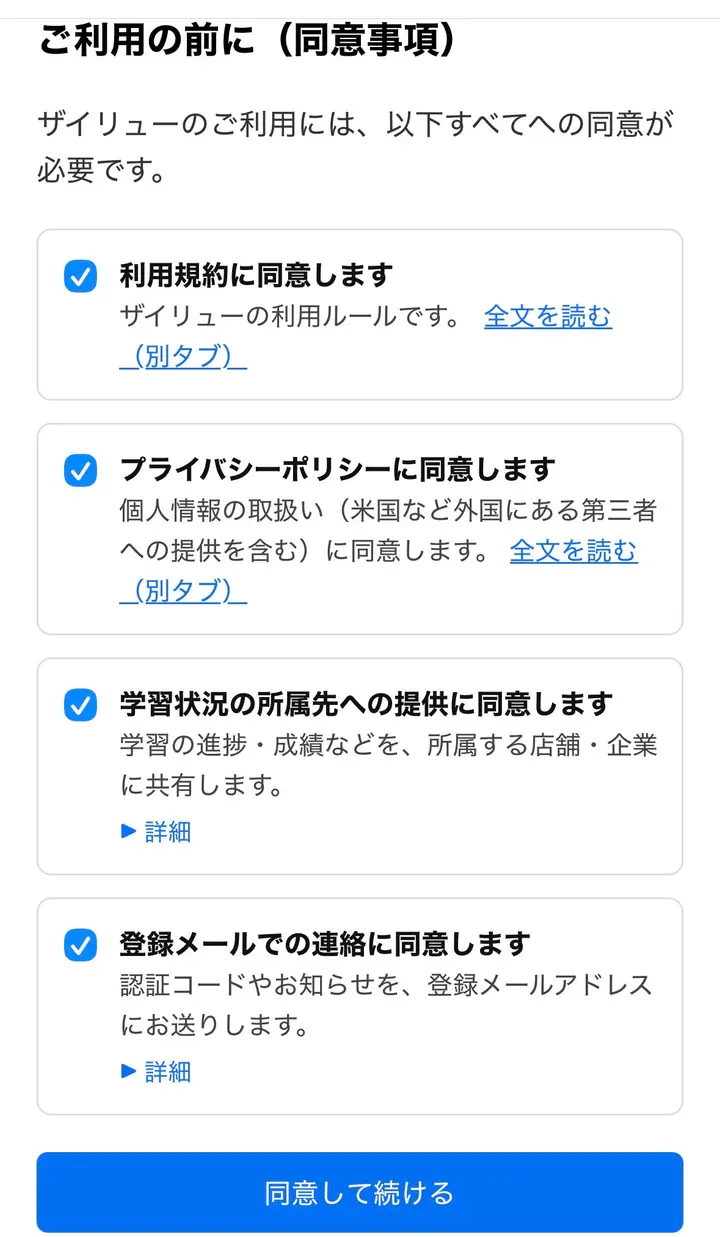
Tick the consent items
When you tap「ログイン」(Log in), the consent screen「同意事項」 appears. Read it, tick all four boxes, and tap 「同意して つづける」 (Agree and continue).
STEP 11
You are connected
When you have agreed, the browser inside the app closes by itself. Once you are back on the Claude app screen, you are connected.
STEP 12
Try it out
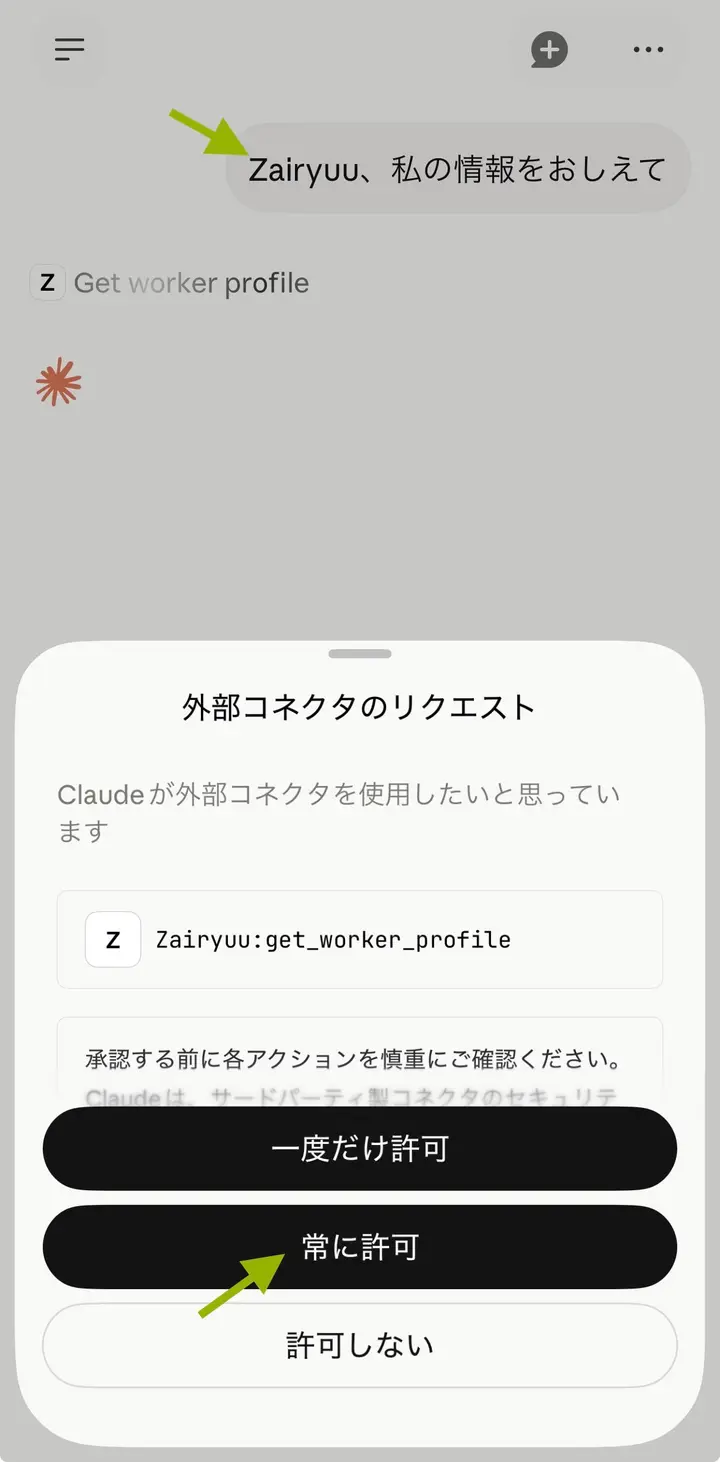
Write this in the chat and send it.
Zairyuu、私の情報をおしえて
This means "Zairyuu, tell me my information". Please send it in Japanese, exactly as written above.
When「外部コネクタのリクエスト」(External connector request) appears, tap 「常に許可」 (Always allow).
STEP 13
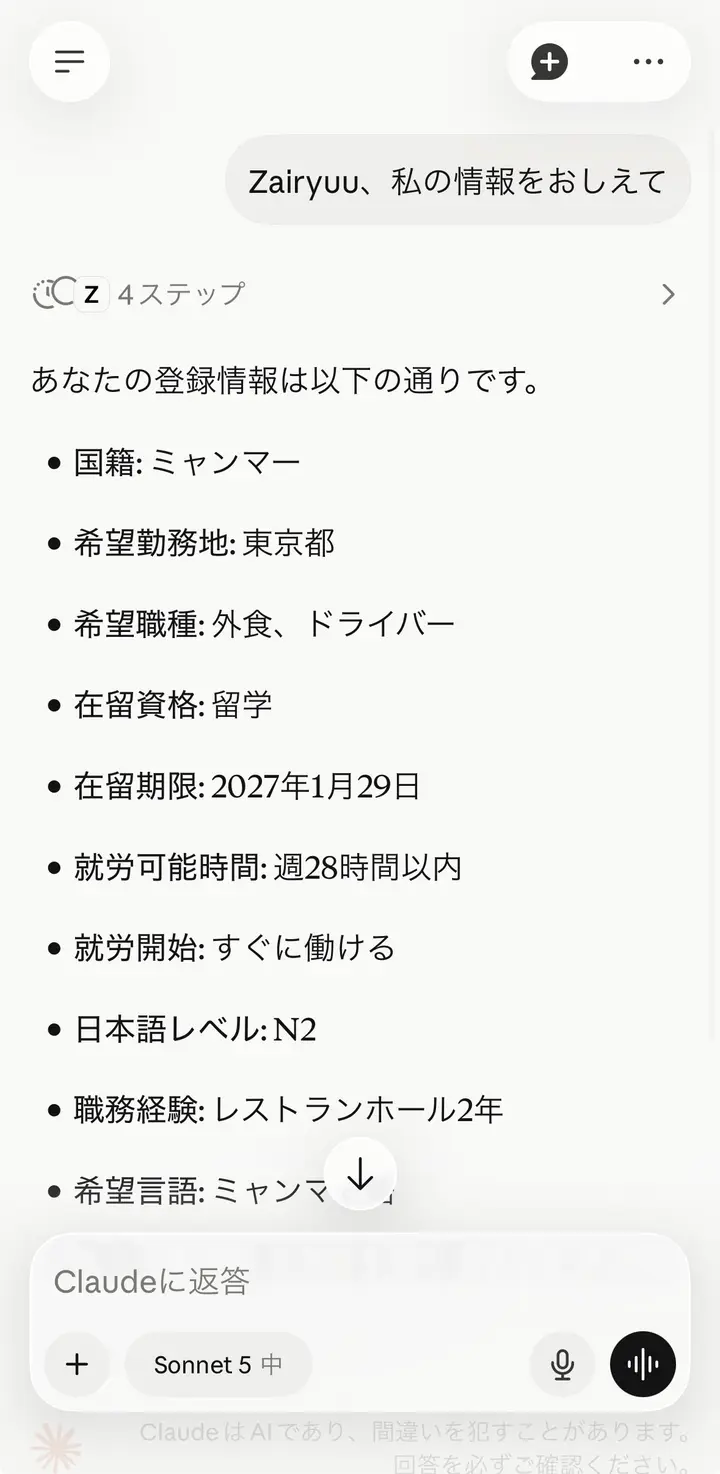
All done
When your information appears, you are finished. You can start studying with Zairyuu from today.
How to start studying
START
Once you are connected, write this in the chat and send it.
今日のレッスンをはじめたい
This means "I want to start today's lesson". Please send it in Japanese, exactly as written above.
Zairyuu will bring you today's study. After that, you only need to answer the questions it asks.
If something goes wrong
FAQ
Zairyuu stopped working
If you do not use it for a while, you have to log in again. Please do steps 7 to 10 of Part 2 again (tap「連携」and enter your email address and authentication code). The authentication code does not change. Use the one you received at the beginning.
I cannot find the email
Please also check your spam folder. If it is still not there, please contact Headliner.
I want to do this on a computer
The Claude desktop app on a computer stops partway through. Please use a smartphone.
The connector shows 「連携」 (Connect)
That is not a failure. It only means you have not logged in to Zairyuu yet. When you tap「連携」(Connect), the Zairyuu login screen appears.
I cannot find 「カスタムコネクタを追加」 (Add custom connector)
Please update the Claude app to the latest version. Open Claude in the App Store (or Google Play) and tap "Update" if it is there.
Last updated: 3 September 2026